
Very useful tool for checking SQL and RMS device ports are open and active.
The below windows tool is ideal for confirming that suitable ports are open from Web server to SQL server. The tool can also be used to confirm port 80 is open to RMS software... however note that the software will only test communication from the PC running it >> RMS server. Most connection issues are due to RMS devices not having network access to RMS server.
Still perhaps useful.
https://www.microsoft.com/en-us/down....aspx?id=24009
Guidance
https://docs.microsoft.com/en-us/troubleshoot/sql/connect/resolving-connectivity-errors#using-portqryui-tool-with-sql-server
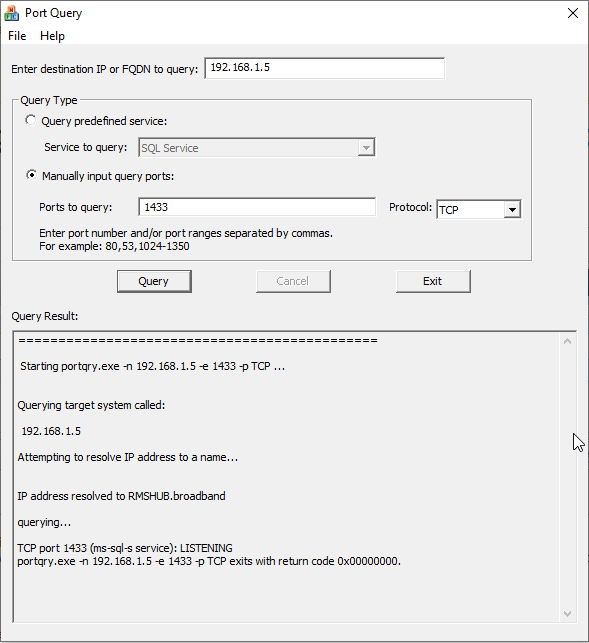
Still perhaps useful.
https://www.microsoft.com/en-us/down....aspx?id=24009
Guidance
https://docs.microsoft.com/en-us/troubleshoot/sql/connect/resolving-connectivity-errors#using-portqryui-tool-with-sql-server
Additional approach here... is to open CMD and run the below command (including quotes). Assumes user has ,net v4.7.2 installed.
This will attempt to communicate directly with the device service software (same as RMS devices). If the PC running this test has same domain access and IP address as the RMS device it should prove that network access is granted to RMS server. This means you typically cannot use an end user PC that will have wider domain access vs a 'foreign' PC on the network.
If successful CMD will successfully download a file called DeviceService.cs (file and contents are irrelevant ... that fact the download is successful is key). If an error is triggered there is an issue that requires investigation.
Update the host name below for local RMS installations.
"C:\Program Files (x86)\Microsoft SDKs\Windows\v10.0A\bin\NETFX 4.7.2 Tools\x64\svcutil.exe" http://rms.rotronic.com/wService/wService3.DeviceService.svc?singleWsdl
Example sucessful response
This will attempt to communicate directly with the device service software (same as RMS devices). If the PC running this test has same domain access and IP address as the RMS device it should prove that network access is granted to RMS server. This means you typically cannot use an end user PC that will have wider domain access vs a 'foreign' PC on the network.
If successful CMD will successfully download a file called DeviceService.cs (file and contents are irrelevant ... that fact the download is successful is key). If an error is triggered there is an issue that requires investigation.
Update the host name below for local RMS installations.
"C:\Program Files (x86)\Microsoft SDKs\Windows\v10.0A\bin\NETFX 4.7.2 Tools\x64\svcutil.exe" http://rms.rotronic.com/wService/wService3.DeviceService.svc?singleWsdl
Example sucessful response
Microsoft (R) Service Model Metadata Tool
[Microsoft (R) Windows (R) Communication Foundation, Version 4.7.3081.0]
Copyright (c) Microsoft Corporation. All rights reserved.

Attempting to download metadata from 'http://localhost/wService/wService3.DeviceService.svc?singleWsdl' using WS-Metadata Exchange or DISCO.
Generating files...
C:\DeviceService.csJeremy Wingate wrote:The below windows tool is ideal for confirming that suitable ports are open from Web server to SQL server. The tool can also be used to confirm port 80 is open to RMS software... however note that the software will only test communication from the PC running it >> RMS server. Most connection issues are due to RMS devices not having network access to RMS server.
Still perhaps useful.
https://www.microsoft.com/en-us/download/confirmation.aspx?id=24009
Guidance
https://docs.microsoft.com/en-us/troubleshoot/sql/connect/resolving-connectivity-errors#using-portqryui-tool-with-sql-server
[attachment missing]
Thanks a lot Jeremy.
No matching posts in this thread.